
Gift cards, loyalty & reviews
The extras that bring guests back.
- What's in here
- Gift cards
- Selling and reloading at the register
- Selling gift cards online and on plastic
- Loyalty – the punch card
- Setting up the reward
- Loyalty at the register
- Regulars and first visits
- Review requests
- Ratings land with you first
- A note on the other loyalty
- Plastic gift cards & paying with Vault
What's in here
Three things that all do the same job from different angles: get a guest to come back.
Gift cards bring someone in holding money they've already spent. Loyalty gives a regular a reason to pick you over the place next door. Review requests turn a good visit into something a stranger can read.
None of them are set-and-forget marketing. All three are counter tools – they live where the sale happens.
**Table Time** used to be described here. It now has its own chapter – timed rentals grew past a paragraph.
Gift cards
TableTurn sells digital gift cards (eGift) straight from the register. A guest can buy one for someone else, top one up, or pay with one, and the balance lives on the card rather than in a spreadsheet behind the counter.
Gift card sales are never taxed. You're not selling goods when you sell one, you're taking a deposit – the tax is charged later when they spend it. The register handles that on its own, so nobody has to remember.
Selling and reloading at the register
Gift cards in the register toolbar opens a three-tab sheet: Activate, Add value, and Balance.
Activate loads a new card. Add value tops up an existing one. Both are *sales* – they land on the ticket and get paid for like anything else, and the card is only actually loaded once the payment goes through. That ordering matters: nobody walks out with a live card that wasn't paid for.
Balance is different – it's a straight lookup, runs immediately, and charges nothing. It's the answer to "how much is on this?", which is the most common gift-card question at a counter.
- 1Tap Gift cards and pick the tab you need.
- 2Enter the card number on the on-screen keypad, or scan the card's barcode – the field takes both, and the iPad keyboard never opens over it.
- 3For Activate or Add value, enter the amount and add it to the ticket.
- 4Take payment as normal. The card goes live once the sale completes.
Taking a gift card *as payment* is a different button – **Gift** on the tender band, alongside Cash and Charge. The toolbar sheet is for selling and checking; the tender is for spending.
Selling gift cards online and on plastic
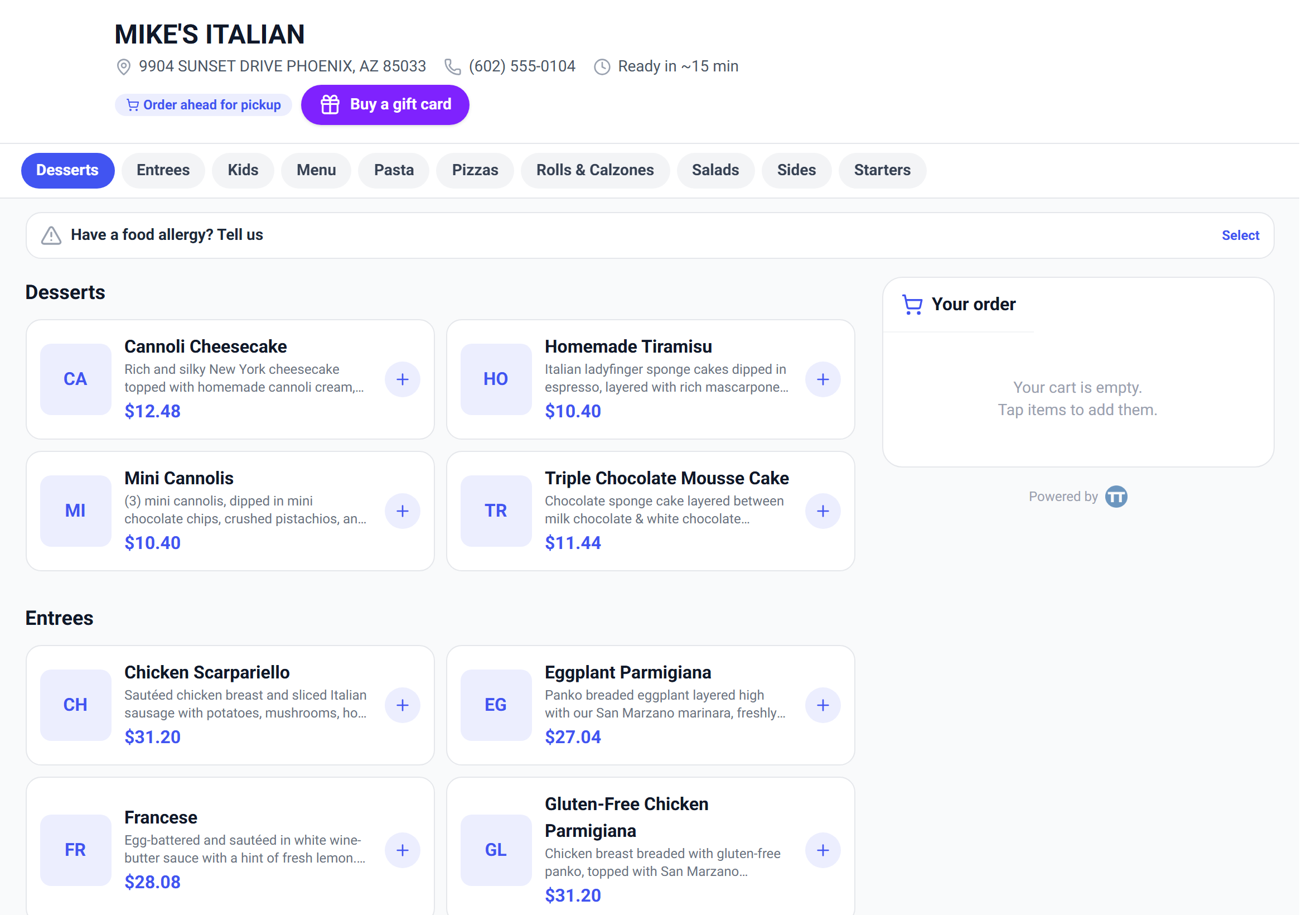
Your online ordering page carries a Buy a gift card button, so guests can buy one without coming in – which is most of the point of gift cards in December.
If you want physical cards on the counter, you can order printed card stock. Plastic sells better as an impulse buy at the till than a digital card ever will, and it's something to hand over as an actual present.
Physical cards sold from a paper inventory aren't tracked by the digital platform, so keep the two accounted for separately or you'll be reconciling ghosts.
Loyalty – the punch card
TableTurn's loyalty is a digital punch card, and it is deliberately simple: a guest earns punches, and at a number you choose they get a reward.
There's no app for the customer to download and no card to lose. They're identified by phone number or email, which they already have on them.
It's set up under Marketing in your back office, not in the TableTurn settings – which is worth knowing, because it isn't where most people look first.
Setting up the reward
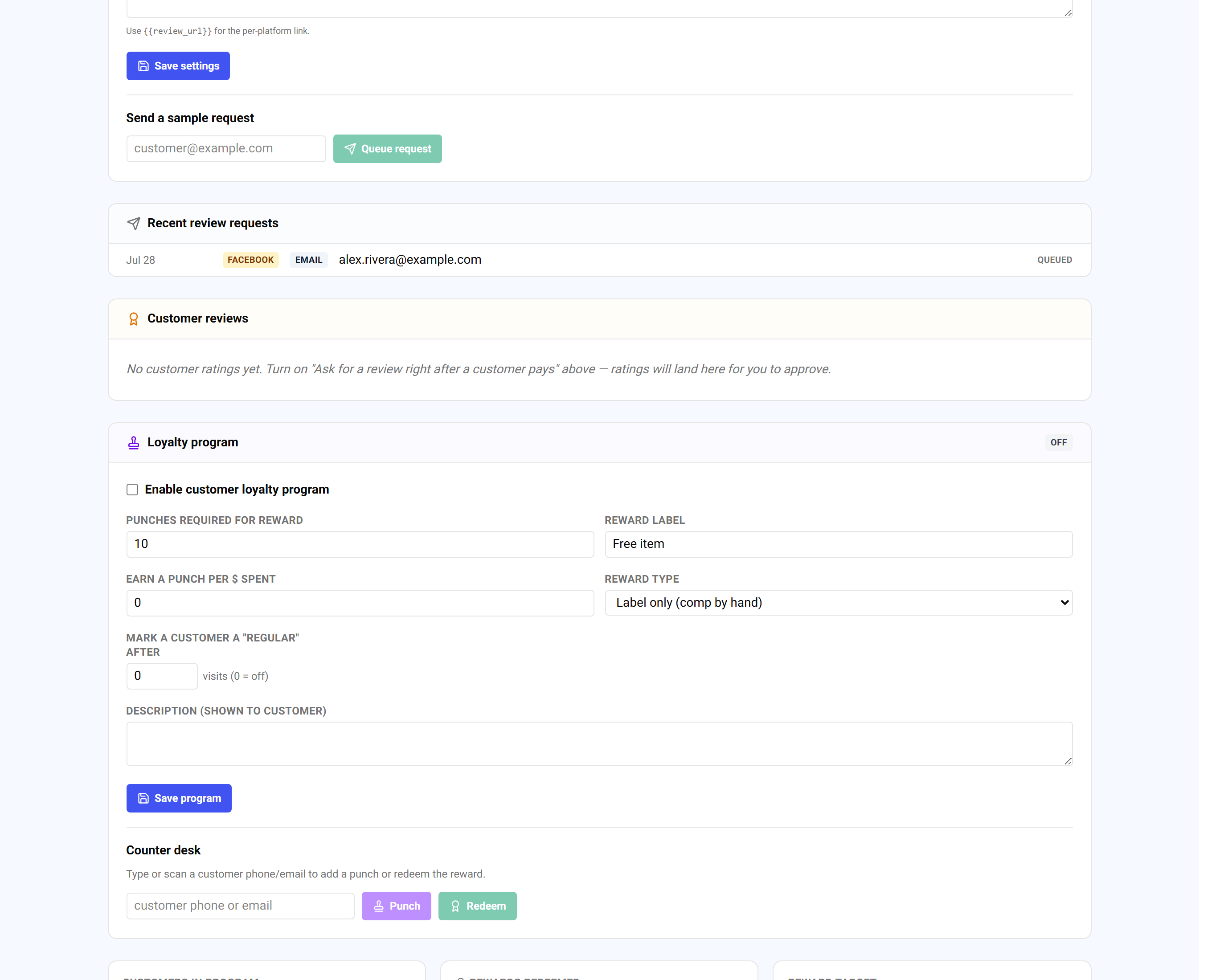
- 1Turn on Enable customer loyalty program.
- 2Set punches required for reward – 10 is the default and a reasonable place to start.
- 3Write the reward label. This is what the guest is working towards, so *Free coffee* beats *Reward*.
- 4Pick a reward type. Label only means staff comp it by hand – simplest, and right when the reward is a specific item. The other types apply a set amount or a percentage off automatically, with a cap you can set so a percentage reward can't run away on a big check.
- 5Optionally set earn a punch per $ spent – leave it at 0 and a punch is one visit; set it and punches track spend instead.
- 6Add a description if you want the guest to see the terms.
One punch per visit rewards frequency; punches per dollar rewards size. Coffee shops want the first, dining rooms usually want the second – pick the behaviour you actually want more of.
Loyalty at the register
Attach a customer to a sale and the ticket shows where they stand – Loyalty 7/10. When they hit the target the count is replaced by Reward ready and a Redeem button, so nobody has to work out whether this is the visit.
There's also a counter desk on the loyalty page itself: type or scan a phone number or email and hit Punch or Redeem. That's the fallback for a guest who's already paid, or a walk-up who isn't buying anything.
Regulars and first visits
Two flags do a lot of work here, and both are about staff behaviour rather than discounts.
First visit – the register flags a customer who has never been punched before. Someone's first time is the only time a welcome lands as a welcome.
Regular – set mark a customer a "regular" after a number of visits (0 turns it off) and anyone past that threshold is badged on the ticket. It counts lifetime visits, so redeemed cards still count towards it; getting a reward doesn't demote you to a stranger.
These cost nothing and change the room more than the reward does. Being recognised is the thing people actually come back for.
Review requests
Under Marketing you can have TableTurn ask for a review automatically – after a closed ticket, and after a customer pays an invoice online.
Set your Google, Yelp and Facebook links, pick which platforms to ask for, and write the message. `{{review_url}}` drops in the right link per platform, so one message covers all three. Requests go by email; marketing by text isn't available.
Send a sample request to yourself first. It's the only way to see what a guest actually receives.
Ratings land with you first
With ask for a review right after a customer pays turned on, the confirmation screen asks the guest to rate their experience – and those ratings arrive in a Customer reviews queue for you to approve before they go anywhere.
That order is the whole design. You find out about a bad night from the guest, privately, while you can still do something about it, instead of reading it in public a week later.
The ratings your customer display collects also feed the average on your Sales Overview, so satisfaction sits next to the night's takings rather than in a separate tool.
A note on the other loyalty
If you also use eGift through Merchant360, you'll find a second, points-based loyalty program there – points earned and redeemed on the gift card itself, with a reward catalog.
It's a separate system from the punch card above. The punch card is what the TableTurn register reads and displays; the points program is run from the eGift side. Pick one and stick to it, or your regulars will end up with two balances and no idea which is which.
Plastic gift cards & paying with Vault
The Buy a gift card button on your online-ordering page opens a storefront that carries your identity: your gift-card artwork (uploaded in eGift settings), your restaurant name, address and phone – the buyer sees exactly whose card they're buying.
When you enable plastic cards in eGift settings, buyers choose Email it (instant, free) or Mail a plastic card, with your handling fee shown up front and itemized under the Pay button. Mailed orders land in your fulfillment queue with the shipping address.
Buyers with a Vault wallet can quick-pay with a saved card – same one-tap flow as the ordering checkout – and first-time buyers can consent to save their card for next time.