
Payments, tips & pricing
Every tender, every tip style, and dual pricing done right.
- The six ways to take money
- Cash
- Card
- Gift cards, saved cards and phone orders
- Split tender – one sale, two ways of paying
- Three ways to take a tip – pick one
- Adjust after the sale – how the restaurant flow works
- Clearing the Needs tip queue
- Cash tips
- Automatic gratuity for large parties
- Dual pricing and cash discounting
- Splitting a check between guests
- Once money has moved, the split locks
- Discounts, comps and tax exempt
- Round up for charity
- When a payment goes wrong
The six ways to take money
Everything below is a tender – a way of collecting what's owed. The register shows the ones you can actually use: card tenders disappear entirely until card processing is live, and gift only appears once eGift is on.
Cash – a keypad, quick tenders, and change due. Card – sends the amount to your reader. Gift – redeems an eGift card by code or scan. Card on file – charges a card a customer has saved. Split – one sale paid part card, part cash. Phone order – a card keyed by hand for a phoned-in order.
None of these change the ticket. If one fails, the items are still sitting there and you can try another without re-ringing anything.
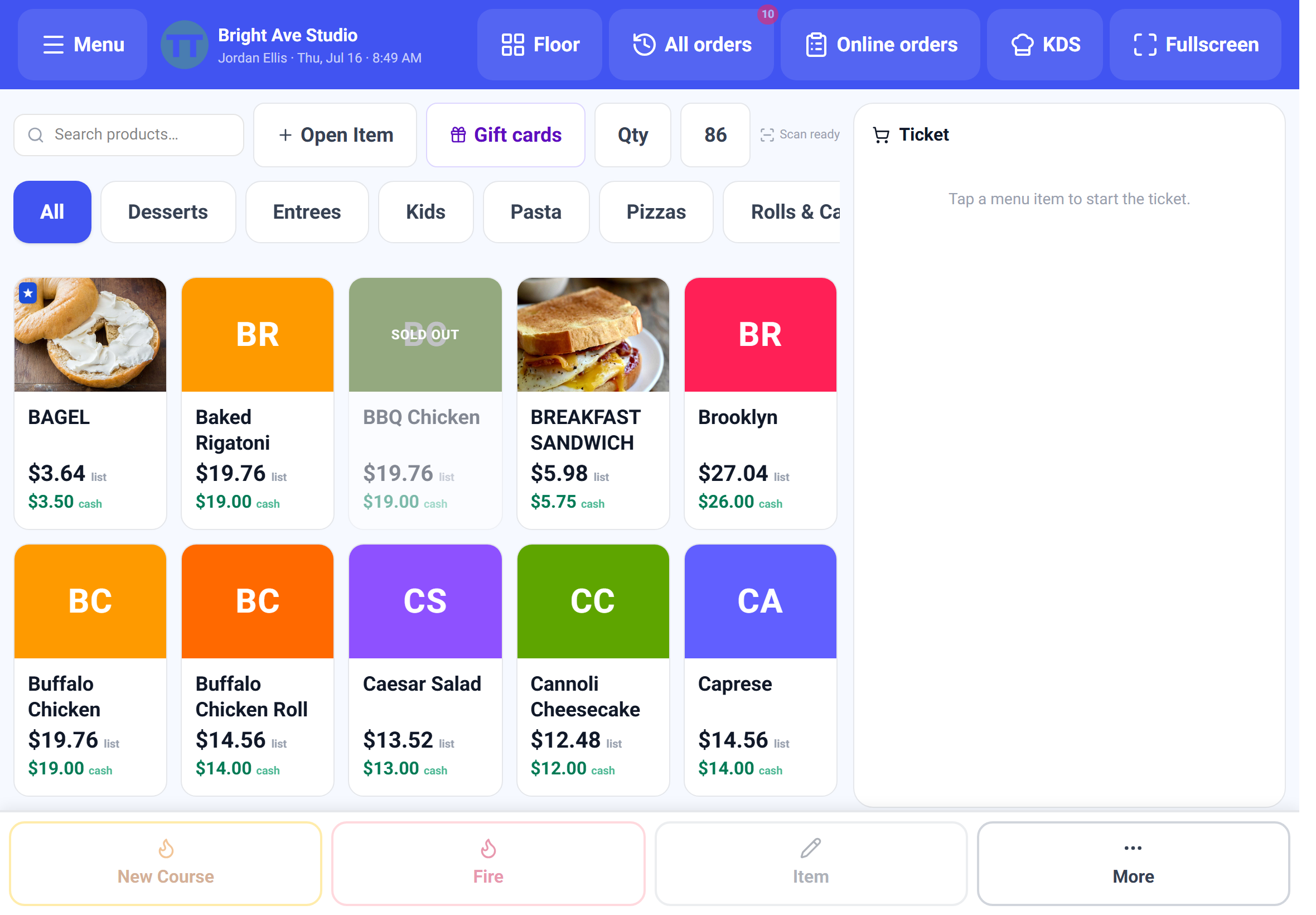
Cash
- 1Tap Cash. The sheet opens showing what's due.
- 2Tap Exact, or one of the round numbers above the total – the register works them out from the amount, so a $14.14 check offers $15, $20, $50 and up.
- 3Or key the amount on the pad. The pad is the only way in; the tablet's soft keyboard never opens over it.
- 4Change due sits in the pinned footer in large green type. Tap Complete cash sale.
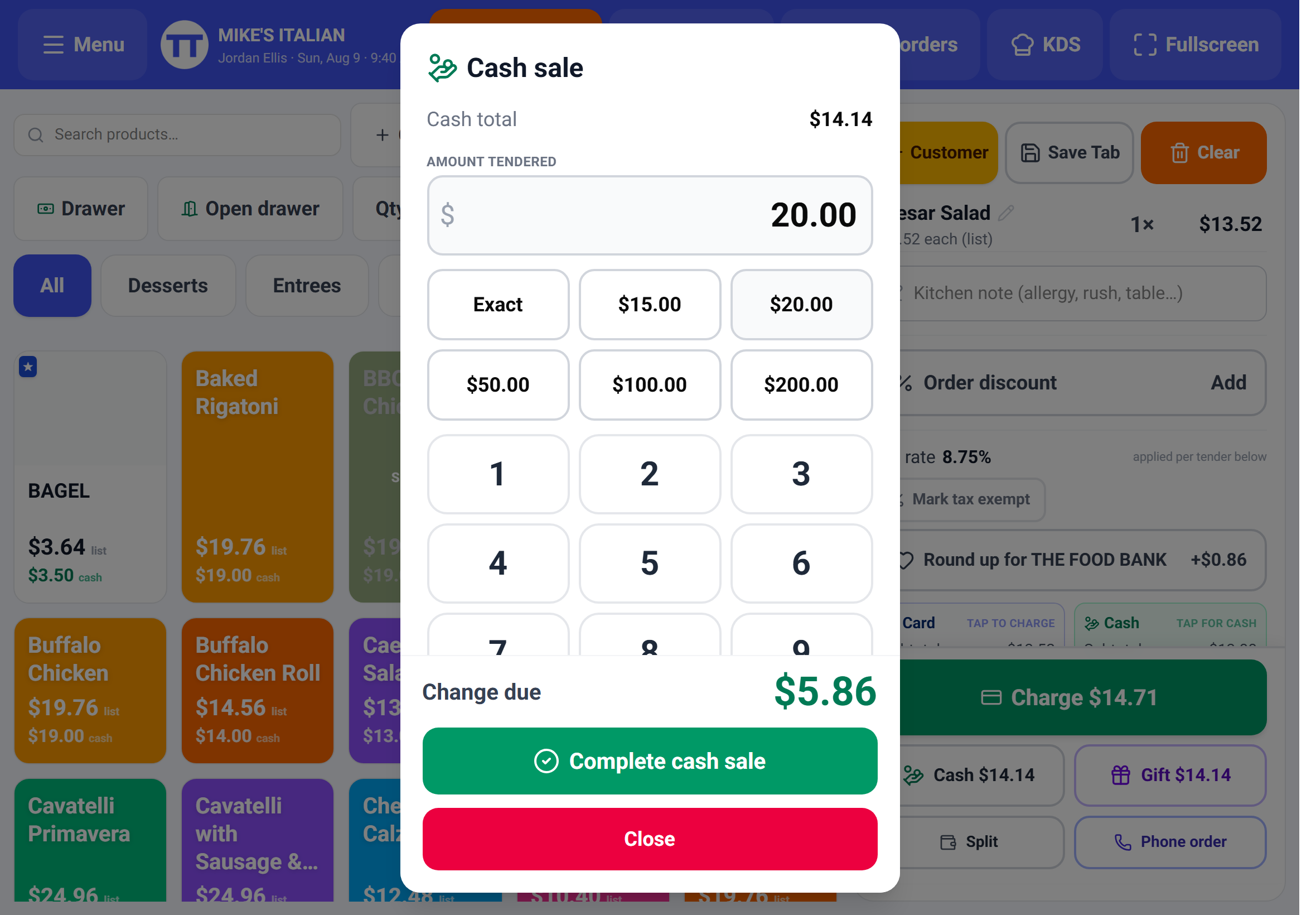
With cash rounding on, the footer also shows what the change rounded **from**, so a cashier can tell the difference between the register rounding and their own misread.
Card
Charge sends the amount to your reader and puts a full-screen overlay up: *Charging $48.20…* plus the terminal's name, so on a counter with two readers nobody presents the wrong one. Cancel sale on terminal pulls it back if the guest changes their mind.
If you have more than one reader connected and you've turned the picker on, a Terminal dropdown appears above the tenders. With one reader, or a saved default, the register just uses it silently.
If you cancel and the terminal had already finished, you get an explicit **Cancel was too late** notice naming the amount that was charged. The sale is real at that point – refund it from your back office rather than assuming the cancel worked.
Gift cards, saved cards and phone orders
Gift takes payment from an eGift card by code or by scan. Selling or reloading a gift card is never taxed – you're moving money, not selling goods.
Card on file only appears once you've attached a customer who has a saved card, and it shows the last four so you charge the right one. Handy for regulars and account customers.
Phone order opens a keyed-entry form for a card the customer reads out. It's card-not-present, so it prices differently from a tapped card and carries more chargeback risk – take it when the alternative is losing the order, not as your default.
Split tender – one sale, two ways of paying
Split is for one guest paying part on card and part in cash. It is not the same thing as splitting a check between people – that's further down.
The card leg runs first. When it approves, the cash sheet opens for the remainder with a green confirmation of what already went through, so an interruption halfway is recoverable rather than confusing.
Three ways to take a tip – pick one
This is the decision that shapes your whole service, and it's worth getting right before your first shift. There are three styles and you can only run one.
On screen. The register or the customer display shows tip presets before the charge runs. Best for a counter where the guest is standing in front of you.
On the reader. The card machine asks the guest directly, and the approved total already includes the tip. The in-app pad is hidden so nobody gets asked twice.
Adjust after. The card runs for the check amount with no tip prompt at all. The guest writes a tip on the slip, and a server enters it afterwards. This is the restaurant standard and it has its own section below.
On the reader and adjust after are mutually exclusive – turning one on turns the other off. Turn both off and you get the on-screen style.
Tip presets are yours: up to four percentages, comma-separated, defaulting to 15 / 18 / 20. They drive the on-screen pad, the customer display, the reader, and the suggested-tip table on printed receipts, so you set them once.
Adjust after the sale – how the restaurant flow works
In adjust-after mode the card is authorised for the check amount only. The guest signs a slip with a tip written on it, and someone enters that tip later. The processor then adjusts the original authorisation rather than running a second charge, so the guest sees one line on their statement, not two.
The trade is that a sale is not finished when the card approves. It sits in a Needs tip queue until a human enters the amount – and $0 counts as an answer.
- 1Ring the check and tap Pay → Card. The card runs for the check total.
- 2Print the check with a tip line on it and take it to the table.
- 3The guest writes the tip and signs.
- 4Open All orders → Needs tip and enter what they wrote.
This is a US restaurant-processing feature. If your account isn't set up for tip adjustment, the option simply won't be available – the register will take the tip up front instead.
Clearing the Needs tip queue
All orders in the top bar badges how many sales are still owed a tip, in red, pulsing. The Needs tip tab holds them and Close all tips › walks you through them one after another rather than making you find each one.
Each sale opens as the printed check on the left and a tip panel on the right: your three presets with the dollar amount already worked out, a keypad, No tip, and Save. Once saved, the check shows Closed · Tip $6.50 and drops out of the queue.
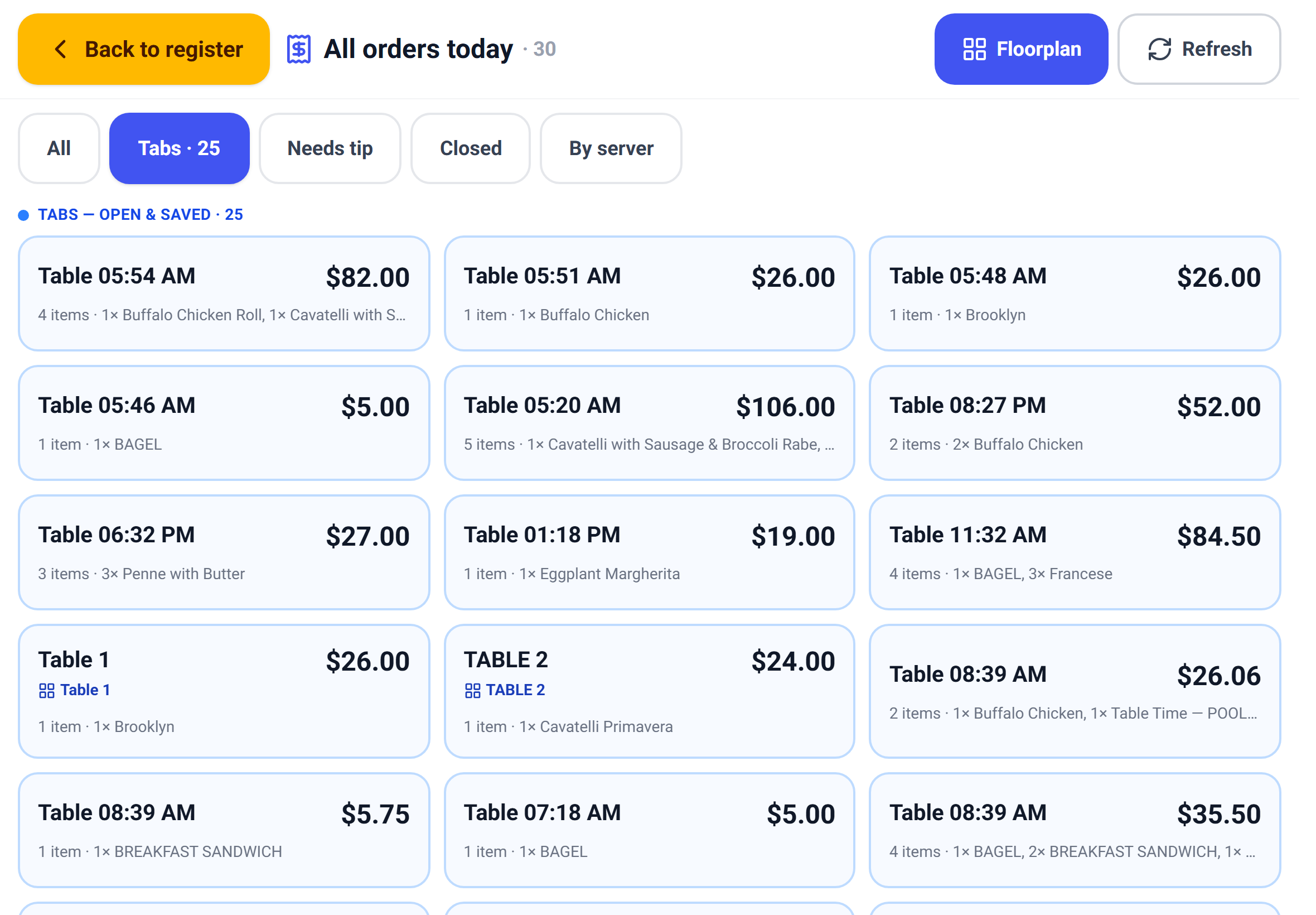
**You cannot close the register while any tip is outstanding.** Close sends you here instead. It's the difference between a Z-report you can trust and a night spent chasing paper slips.
Cash tips
Card tips are captured automatically because the money moves through the processor. Cash tips are invisible unless someone records them, which is why there's a Require recording cash tips setting.
Turn it on and adjusting a sale also prompts the server for the cash tip – an amount, or $0. That's what makes the tip pool and the tip-out numbers real rather than estimates, and it's what your payroll reporting draws on.
Automatic gratuity for large parties
Set a party size and a percentage, and any order whose guest count reaches that size gets the gratuity added automatically. It shows as its own line on the ticket – Auto-gratuity · party of 8 · 18% – and on the check, and it reports separately as auto-gratuity collected.
The guest can still tip on top; auto-gratuity doesn't suppress the tip prompt.
This needs **Track guest count** turned on – the rule keys off the guest count, so with no count there's nothing to compare the party size against.
Dual pricing and cash discounting
These are two different programs and the difference matters, because it changes which number is your real menu price.
Dual pricing stores the cash price as your menu price and adds a percentage for card. Cash discounting stores the card (list) price as your menu price and takes a percentage off for cash. Same gap, opposite starting point – and it decides what your printed menu should say.
Either way the register changes shape: instead of one Total you get two cards side by side, Card and Cash, each with its own subtotal, tax and total. Tapping a card starts that tender. Tiles show both prices, and printed checks present both so the guest can choose before anything runs.
Enrolment is arranged with EPI rather than self-served – you'll get a program to review and confirm, and the register picks it up once it's live.
Whatever the program, the guest-facing wording has to be honest and itemised: present the cash total as the saving it is, and label a surcharge a surcharge. Never dress a card price up as a "card fee" buried at the end.
Splitting a check between guests
This is the table-service flow, on the Pay screen: the ticket on the left, the checks on the right. Each check is charged on its own – you're running several real sales, not carving up one payment afterwards.
One check is the default. Evenly divides the total across a number of ways, from 2 to 12. By items deals the ticket into checks you can rearrange, starting from the seats you already assigned. + Check adds another.
- 1Tap Pay, then choose how to split.
- 2On By items, tap an item to pick it up – the prompt changes to *"Now tap the check it belongs on"* – then tap the destination check.
- 3Tap Pay this check on a card, then choose Charge, Cash or Gift for that guest. Each check takes its own tip.
- 4A paid check turns green with a PAID badge and drops out of the balance. Print on any check hands that guest their own copy.
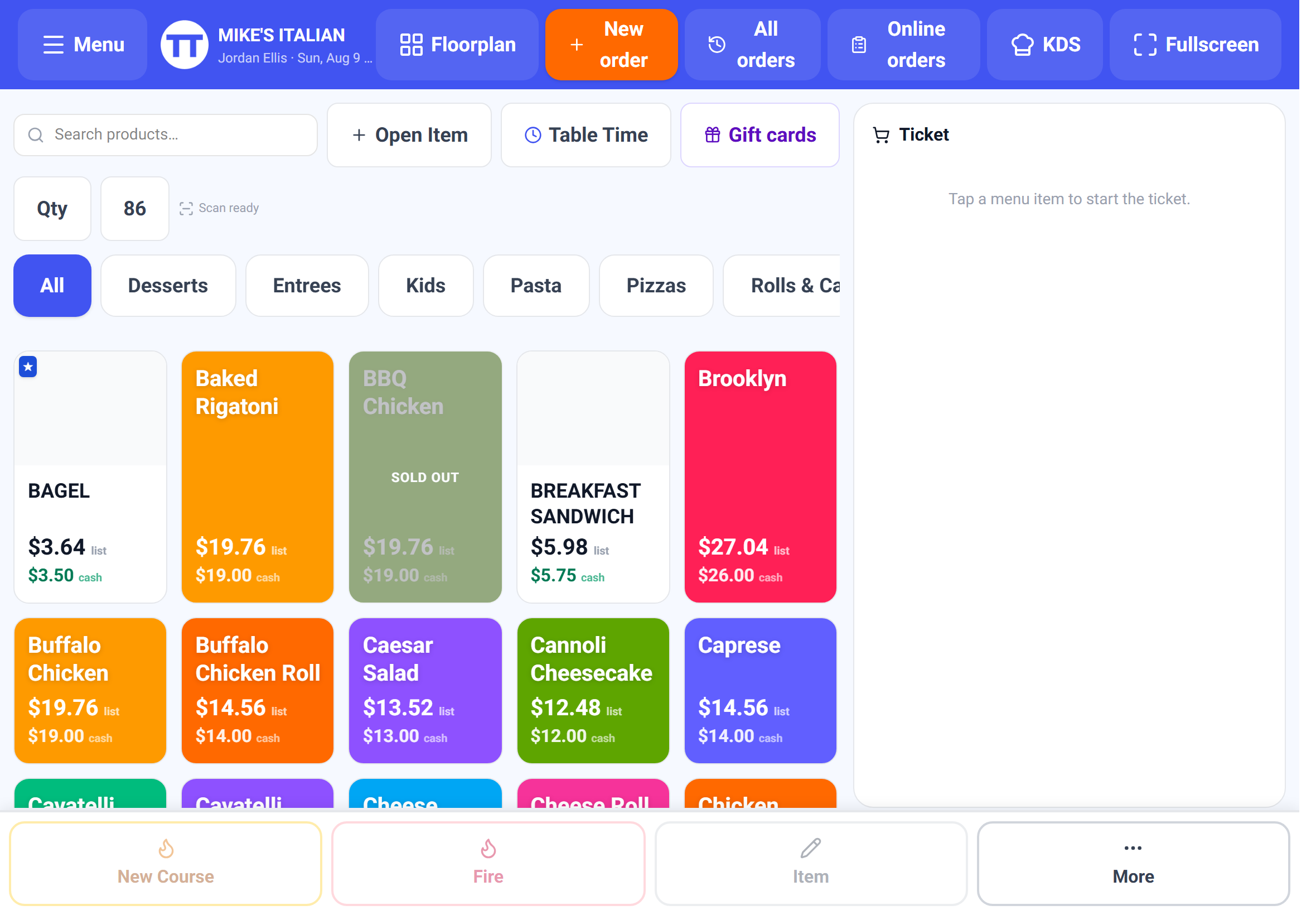
Even splits floor each share and put the odd pennies on check 1, with tax blended across, so the parts always add back to the whole. You never end up a cent short.
Once money has moved, the split locks
The moment any check is paid, the split mode locks – you can't switch from Evenly to By items, or change the number of ways, underneath money that already ran. Unpaid checks can still be charged; the shape just stops moving.
A half-paid table is safe. You can leave the Pay screen, seat someone else, and come back to it – the paid checks stay paid and the balance is still right.
Discounts, comps and tax exempt
Discounts apply in three places: to a single line (tap its price), to the whole order (Order discount), or pre-applied when you long-hold a tile. Each takes a percent or an amount plus a reason from your list, which is what makes the discount column on the Z-report mean something later.
Mark tax exempt clears tax from an order for a nonprofit or resale sale; the tax line switches to a plain Exempt badge.
Both can sit behind a manager PIN. With Require a manager PIN for discounts & tax-exempt on, the register asks in the moment rather than letting it through and leaving you to find it afterwards.
Set your discount and void reasons up before your first shift. It takes a minute and it's the difference between "$340 of discounts last week" and "$340 of discounts last week, and here's why".
Round up for charity
With round-up on, counter-service sales show a Round up for <your cause> button above the tenders with the exact amount worked out. Tap it on when the guest says yes. It appears as its own line on the total and on the receipt, so it's never mistaken for part of your sale.
It's deliberately counter-service only – at a table the guest isn't standing in front of the screen, and asking on their behalf isn't the same thing.
When a payment goes wrong
The card declines. A short notice names the status and the card. The ticket is untouched – try another tender.
You cancelled but it charged anyway. You'll get an explicit warning naming the amount. Treat the sale as real and refund it properly.
The Wi-Fi drops. Cash keeps working and is stored on the device; card, gift and split need a connection and grey out. When you're back online, an Upload N offline sales button appears.
A tip was entered wrong. Adjust it again from All orders before you close out – after the batch settles it becomes a refund-and-rerun rather than an edit.
The register won't let you close. Something still needs a tip. That gate is on purpose.