
Kitchen: KDS & printers
Tickets where the cooks are – screens, printers, or both.
Screens, paper, or both
Orders have to reach the people cooking. TableTurn does that two ways and you can run either or both.
The Kitchen Display (KDS) is a live screen. Tickets appear, change colour as they move along, and disappear when they're done. It's included on every plan, free Lite too, and any tablet, spare iPad or TV browser becomes one – no printer, no print server, no extra hardware.
Printers put the same tickets on paper. Paper survives a dead battery and a spilled drink, and some lines simply work better with a rail of physical tickets.
Most restaurants end up with both: screens on the line, a printer at the pass or the bar.
Getting orders onto the screen
- 1In settings under Printing & tickets, turn on Send register sales to the Kitchen Display so walk-up tickets show on the screen.
- 2In Online ordering, turn on Auto-send online & phone orders to the Kitchen Display. Leave it off and web orders wait in the Online orders queue until someone sends each one – which is the right choice if you want a human to confirm every online order first.
- 3On the kitchen tablet, open KDS from the register's top bar. It opens in its own window.
- 4Install it: on iPad, Safari's Share → Add to Home Screen. It then runs full-screen as its own app, with no browser bars for a cook to accidentally tap.
- 5Pick the station this screen covers from the dropdown – or Expo (all) to see everything.
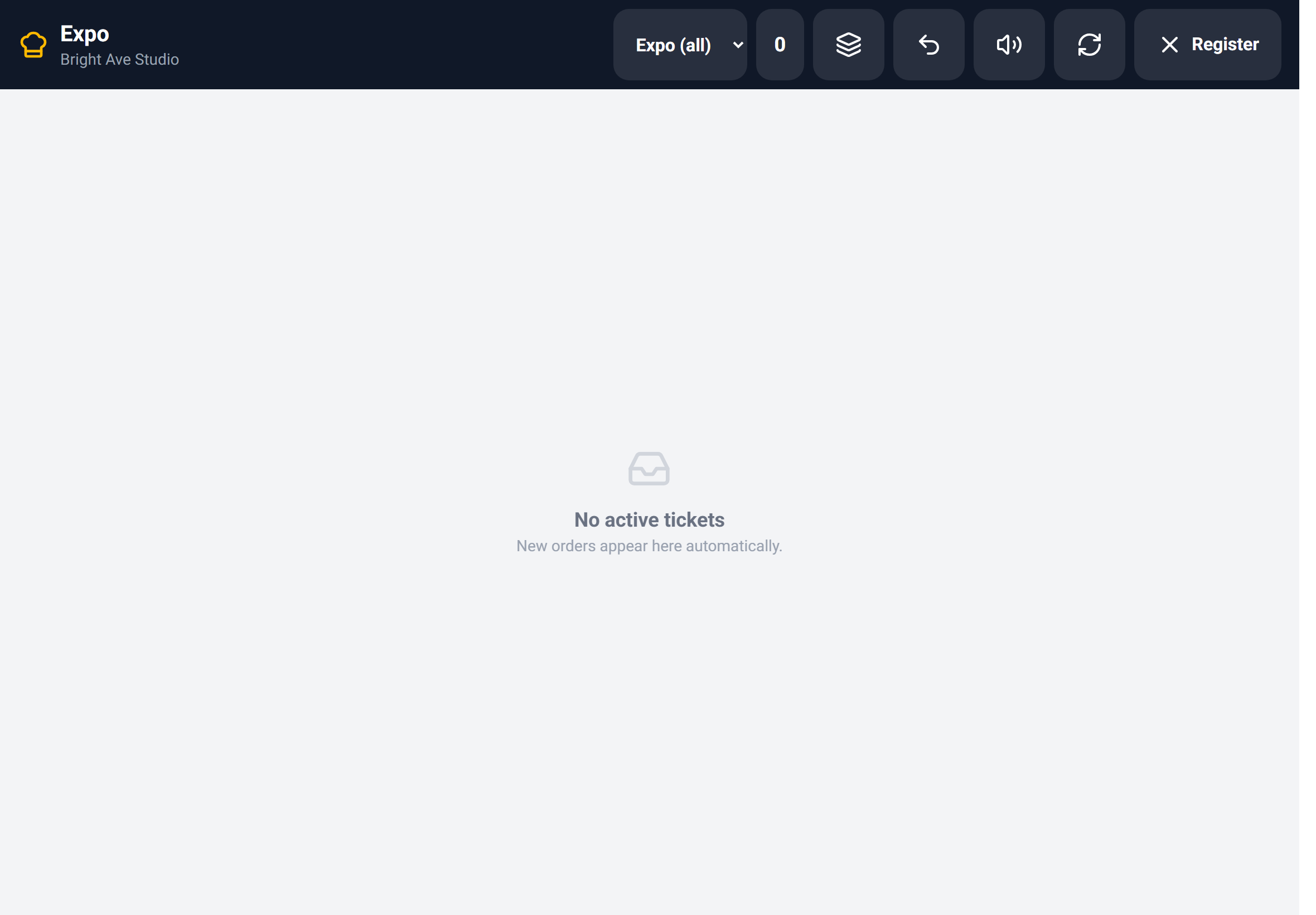
The KDS is a kitchen screen on the same login, so **Register** in its top-right goes back to the register rather than out to the back office. A cook can't wander into your reporting from here.
Reading a ticket
Every ticket carries an order number, where it came from – Counter, Online or Phone – the customer's name if there is one, and a minute counter since it was rung.
That counter turns red at 12 minutes. It's the fastest signal on the screen that something is aging, and it's why the tickets are worth glancing at even when nobody's calling.
Items show quantity, name, seat badge, allergy and prep tags, and modifiers underneath. When a ticket has courses, it's grouped under Course 1, Course 2 headers so the line reads it in the order it'll be cooked.
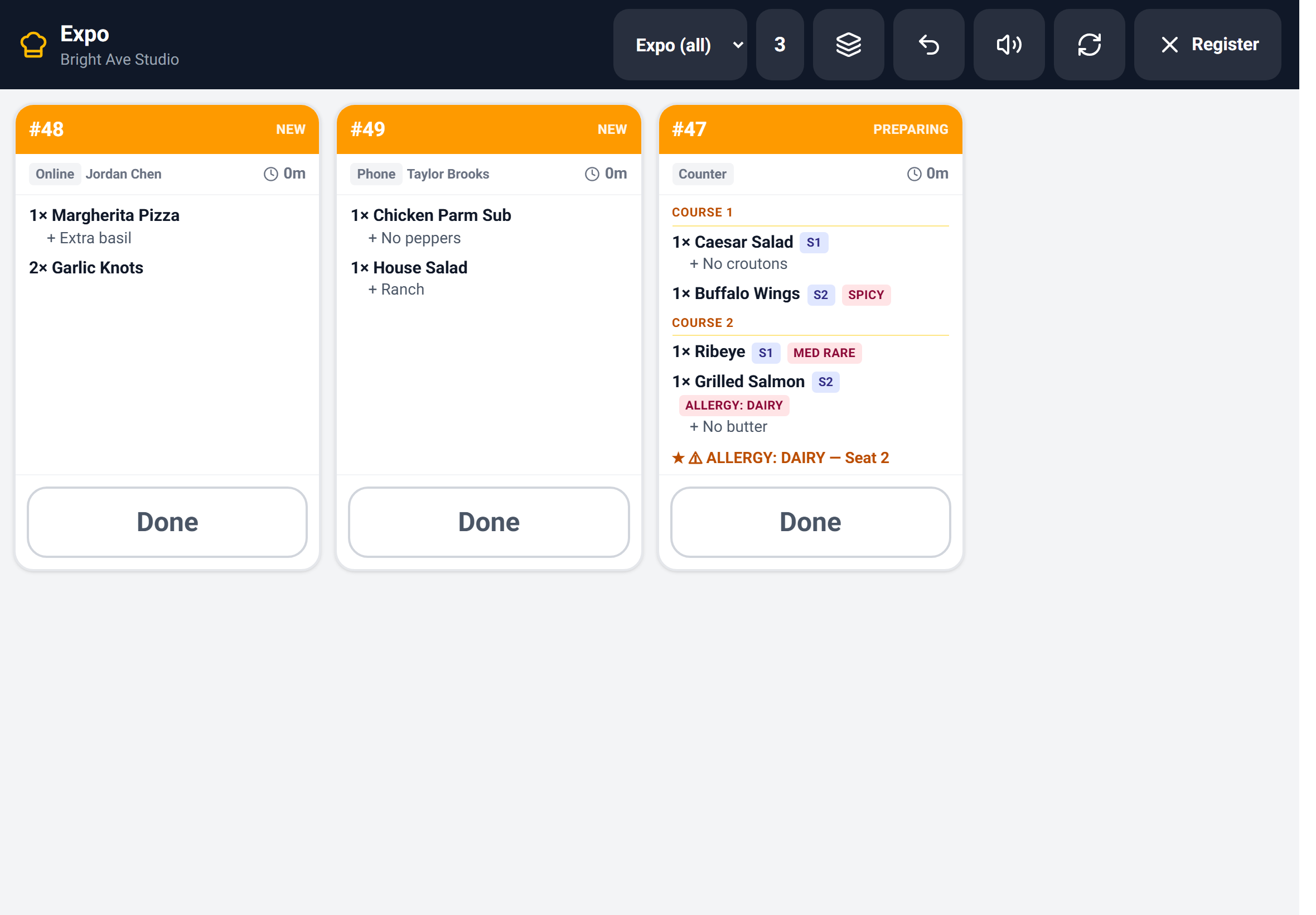
A table is **one ticket**, not one per round. Sending another course appends to the existing card rather than printing a second one, so the cooks always see the whole table in one place.
Moving a ticket along
Tickets have three states and one big button moves them forward. New (amber) → tap Start → Preparing (blue) → tap Ready (green).
There's a small back arrow beside it to bump a ticket back a step when someone taps too fast – which happens, and is better than pretending it doesn't.
On a station screen you're only moving that station's slice of the order. Once a station marks its part ready, the ticket disappears from that screen – it's done there, even though the order is still live elsewhere.
Expo – the screen that sees everything
Expo (all) is different from a station view. It shows the whole order, every item, plus a chip per station reading Grill: Preparing, Bar: Ready. Tap a chip to advance that station from expo, which is how the pass keeps things moving without walking the line.
When every station reports ready, the ticket header turns green and reads All ready. That's the plate-up signal.
Done clears the ticket. On expo it's the button that finishes the order.
Expo is the right view for a small kitchen with one screen – it shows everything, and you never have to think about routing.
All-day, recall and mute
All-day flips open a strip of running totals for what's outstanding – *7 Wings, 4 Caesar, 3 Burger* – sorted by quantity. It's what you check before firing a batch, and it's the number a cook actually wants when someone shouts "how many wings?".
Recall brings back the last completed ticket. For the moment a ticket is bumped and then someone says the plate never went out.
Mute silences the new-ticket chime. Useful on a second screen that would otherwise double up on every alert, and on an expo screen sitting next to a station screen.
Fire on the KDS
When the register fires a course, the table's existing ticket goes red and blinking with a FIRE COURSE 2 banner across it. Because the KDS is a live display, the alert lands on the ticket the kitchen is already looking at rather than printing a new slip they have to match up.
Tap the banner to acknowledge it. The blinking stops, which tells the server the kitchen has seen it.
That acknowledgement is a genuine two-way signal, and the only one in the whole flow. On paper, firing is a one-way shout.
Stations – splitting the kitchen across screens
A station is a screen in the kitchen. You create stations, assign menu categories to them, and point each KDS device at one.
The rules are simple and worth knowing: a category routes to exactly one station, so assigning it somewhere else moves it. There is always a default station that catches every category you haven't assigned – you can't delete it, and it's why nothing ever falls off the screen entirely. Deleting a station drops its categories back to the default.
The same routing drives printers, so setting it up once covers both.
- 1Make sure your menu items have categories – routing has nothing to work with otherwise.
- 2Add a station and name it after the screen: Grill, Fry, Bar, Pastry.
- 3Assign categories to it. Anything unassigned stays on the default.
- 4On the screen by that section, open the KDS and pick that station.
- 5Override single items from the menu builder when an item doesn't belong with the rest of its category.
Per-station screens are a **Pro** feature. On Lite and Lite+ every ticket lands on one shared kitchen screen, which is genuinely enough for most kitchens.
Kitchen printers
TableTurn prints two ways. Network printing is the fast path: the printer sits on the same network as your register and tickets print in under a second, straight from the tablet. Cloud printing is the automatic backup – the printer polls us over the internet, so orders still print when no register is awake – and the primary transport for shops with no direct link.
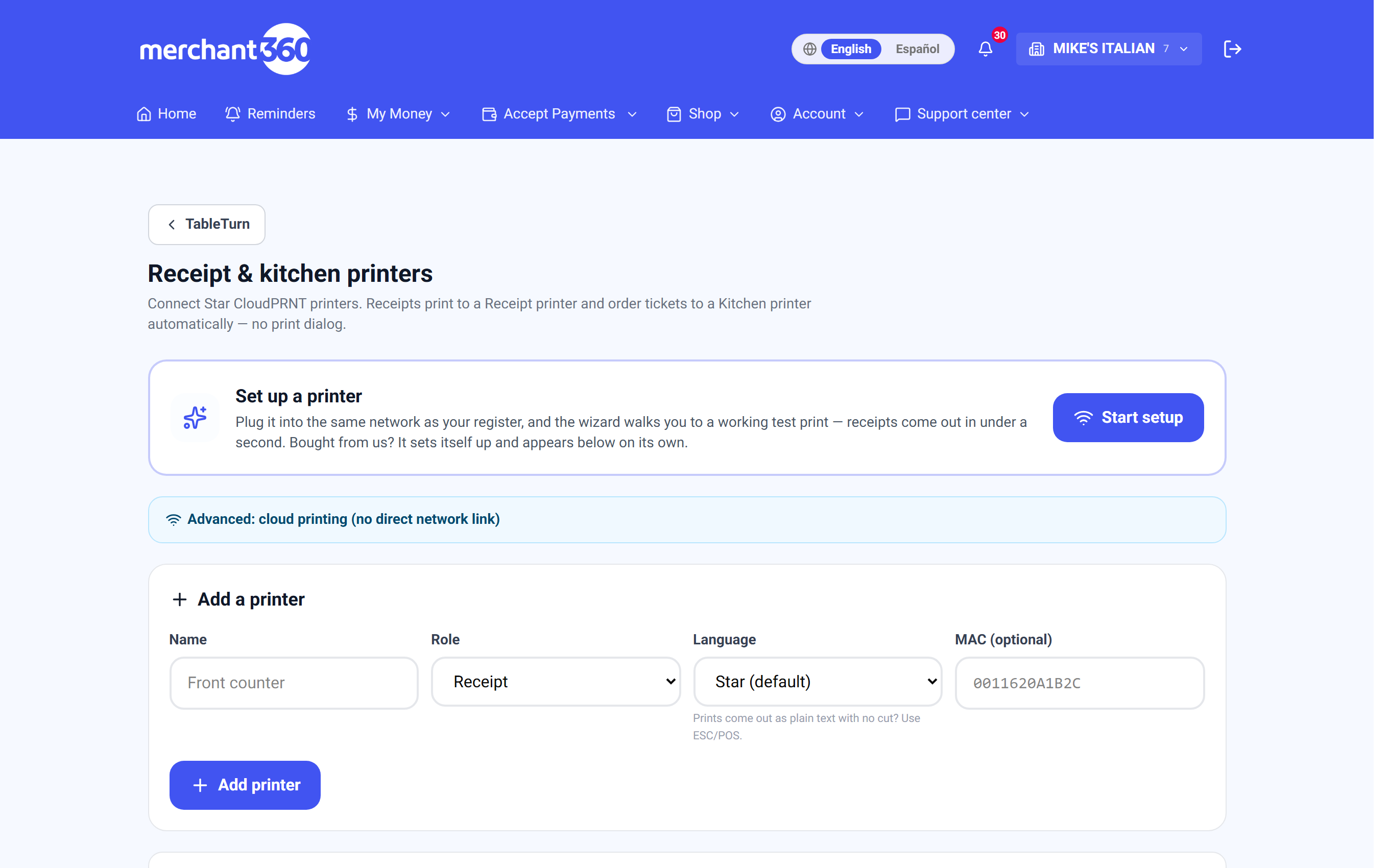
New printer? Tap Start setup on the Printers page. The wizard walks you from plugging it in to a real test ticket in your hand – no server URLs, no drivers. Printers bought from us arrive preconfigured and appear on the page by themselves; the wizard just wires the fast network path on top.
Each printer has a role – Receipts, Kitchen or Both – and that decides what it gets. Kitchen printers add copies (1–3 per order, for a rail and a pass) and categories for routing. No categories selected means that printer prints everything.
Kitchen tickets group by course, carry [Seat N] and allergy tags, and honour the layout you set in the receipt designer – font size, top whitespace for hanging from the pass, item spacing.
Fire slips print separately. They read *FIRE COURSE 2*, or the course plus its items, depending on your setting. On a KDS the fire lands on the live ticket instead.
Printing straight over Wi-Fi
Give a printer its local IP address on the Printers page and receipts print in about a second, straight from the tablet across your own network, instead of waiting for the cloud poll. The cloud queue stays on as an automatic backup and still handles online orders arriving when no tablet is awake.
Two requirements: the tablet and printer must be on the same network with guest isolation off, and you must visit https://‹printer-ip› once per tablet to accept the printer's certificate. Skip that second step and the tablet silently refuses to talk to it.
Worth doing at the counter, where the guest is standing there waiting for the receipt. In the kitchen the cloud poll is fast enough that nobody notices.
When tickets don't arrive
Work through it in this order – it splits the problem fastest.
Check Recent print jobs. PENDING means we queued it and the printer never collected it: it's off, off-network, or not polling. CLAIMED means the printer took it, so the ticket left us and the problem is at the device – paper, a jam, or the printer itself. ERROR means we deliberately stopped rather than risk printing a duplicate – tap Reprint on the job to run it again.
Reprint anything. Every recent job carries a Reprint button – an intentional second copy, queued over the fast path when the printer has one. And the queue is idempotent the other way: the same receipt can never print twice on its own.
Nothing queued at all? The category isn't routed to any printer. Items with no routing print nowhere, silently.
Plain text, no cut, no logo? Switch that printer's language to ESC/POS. Formatting and paper cuts come back.
Nothing on the KDS? If register sales aren't being sent to the display, the KDS now shows an amber banner saying so, with a link to the setting (it only applies to sales rung AFTER it's turned on). Also check the screen is on the right station – the picker is the button row top-right, and a station screen only shows its own categories, so a bar screen will look empty all through a food-only rush.
Bumped something by mistake? On a station screen use the back arrow; on Expo, tap a green Ready chip to send that station back to Preparing. A fully completed ticket is recoverable from the Completed view (the clock-history button in the header) – every ticket bumped in the last 4 hours, with a Recall to board button.
Online orders not appearing? Auto-send is probably off, so they're sitting in the Online orders queue waiting to be sent.
A sale's receipt and its kitchen tickets go out as one job per printer, so they arrive together. If one printed and another didn't, it's that printer, not the order.