
Receipts & branding
Make the paper (and email) yours.
- Two documents, not one
- The Print Design Studio
- Every line is an element
- Branding, per document
- Whitespace and spacing
- The tip and signature line
- Suggested tips on the receipt
- Designing the kitchen ticket
- Print a sample without ringing a sale
- Getting the receipt to the guest
- Reprinting anything
- The print queue
- Ticket routing – what prints where
- Adding a printer
- Printers: roles, copies and routing
- When nothing prints
Two documents, not one
TableTurn prints two completely different things and they're designed separately, which is the single most useful thing to understand here.
The customer receipt is the money document: what was bought, what it cost, tax, tip, how it was paid. It carries your branding.
The kitchen ticket is the work order: what to make, for which seat, with which modifiers. It lists items only – never prices or payment details, because a cook doesn't need them and a ticket on the pass shouldn't show a guest's total.
Both are configured in the receipt designer, in their own sections, with a live preview beside them.
If prices are showing up on your kitchen tickets, you're looking at a receipt – check that the printer's role is Kitchen rather than Receipts or Both.
The Print Design Studio
The studio lives in your TableTurn settings under Receipts & printing, and it designs each document separately. Four tabs across the top – Cash receipt · Card receipt · Guest check · Kitchen ticket – and everything about a document lives under its tab: its header and footer text, its whitespace, and every line it prints.
The editor sits on the left, a live paper preview on the right that redraws as you change things. The preview is rendered by the same engine the printers use, so what you see is what comes off the roll.
Everything saves the moment you tap it – there's no Save button – and each tab has its own Reset that clears just that document's customizations.
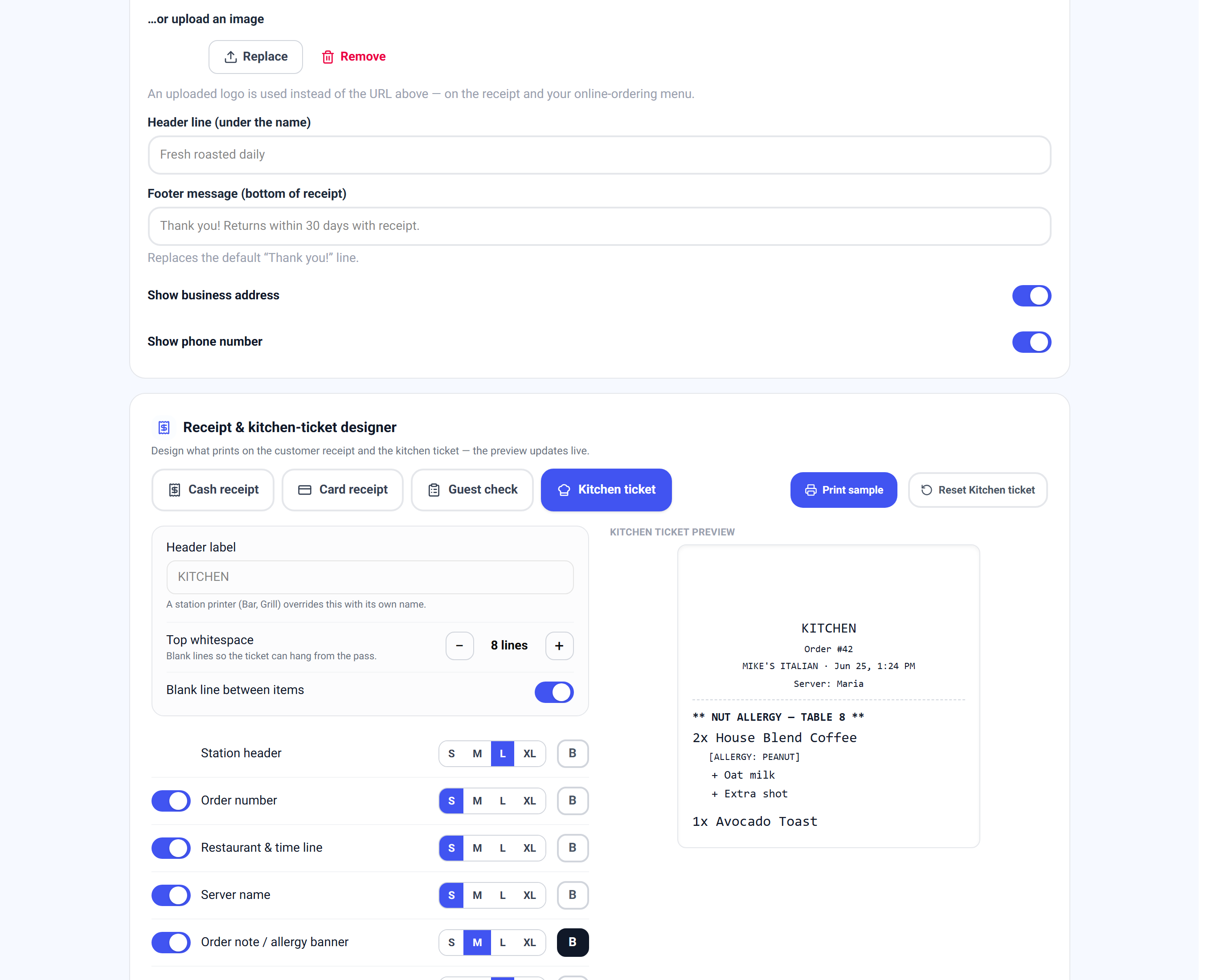
Design the kitchen ticket with the kitchen, not for them. Two minutes at the pass with the Print sample button settles font-size debates that meetings can't.
Every line is an element
Each row in the studio is one element of the printed document – business name, address, date & time, server name, order number, the item lines, the totals, the TOTAL, the footer. Each element has a show/hide switch, a size (S, M, L, XL – normal, tall, double, triple), and a bold toggle.
Lines that carry a price column (items, totals, the TOTAL) only grow taller, never wider – wider would push the prices off the edge of the paper. Kitchen lines carry no prices, so they can go genuinely huge: XL items on a kitchen ticket are readable from across the line.
The card receipt adds its own elements – the card details block, the suggested-tip table, the tip & total write-in and the signature line. The guest check adds its title. The kitchen ticket adds the station header, the order note banner and allergy tags.
Branding, per document
- 1Upload your logo. It appears on emailed receipts and your ordering page (thermal paper gets the full graphic treatment with the native app).
- 2Each receipt tab has its own header line and footer line. Leave one blank and it inherits your shared branding text – the placeholder shows you what that is. Type something and that document gets its own: a cash receipt that says "Open daily 7am–3pm" while the card receipt's footer says "Gratuity appreciated!".
- 3The kitchen tab has a header label instead – KITCHEN by default; a station printer named Bar or Grill overrides it with its own name.
- 4Show or hide the address, phone, date & time, server name and order number per document with their element switches.
The footer is the one place a guest reliably reads after the fact. A policy printed there is worth more than the same policy on a wall.
Whitespace and spacing
Top whitespace feeds blank lines before the document prints. It sounds trivial and isn't: it gives you a clean tear above the print, and a kitchen ticket with a few blank lines at the top can hang from the pass without hiding the first item. It's set per document, in lines.
Blank line between items puts air between the lines on busy tickets – a spaced-out ticket reads far faster in a rush. Also per document.
The tip and signature line
The Card receipt tab owns the tip flow. Tip write-in flow prints a tip write-in, a total write-in and a signature line on card receipts, and also prints merchant + customer copies – it's the paper half of the adjust-after tip flow: the guest writes a tip, signs, and a server enters it later.
It's smart about when to print. The write-in only appears when no tip was already taken on screen – so if a guest tipped on the reader, they don't get handed a slip asking again.
The write-in, the signature line and the suggested-tip table are also design elements on the Card tab – size them, bold them, or hide any of them individually.
If you run adjust-after tips, this is not optional – it's the document the tip is written on. Turning it off leaves your servers guessing.
Suggested tips on the receipt
Suggested tips on receipts prints a small calculated table above the write-in line, worked out from your tip presets – *18% = $3.04*, and so on.
It's arithmetic done for the guest at the moment they're deciding, which is the moment it helps. The percentages come from the same tip presets that drive the on-screen pad and the reader, so there's one place to change them.
Designing the kitchen ticket
- 1Open the Kitchen ticket tab. Its paper section holds the header label and top whitespace; its elements are the station header, order number, restaurant & time line, server name (on by default – the line wants to know whose table it is), the order-note/allergy banner, item lines, allergy tags and modifiers.
- 2Modifiers put the special instructions on the ticket. Leave them on; they are the whole point of the ticket.
- 3Size the item lines up – L or XL – for how your tickets are actually read: from a rail, at arm's length, in steam.
- 4Press Print sample and hold the paper where the kitchen holds it. Adjust, print again. Two rounds and it's right.
Print a sample without ringing a sale
Every studio tab has a blue Print sample button. It prints the same sample order the on-screen preview shows – through that document's current design – on the right printer: kitchen samples to the kitchen printer, receipt samples to the receipt printer.
That's the whole design loop: change an element, print a sample, hold the paper, adjust. No test orders, no running sales, no walking back and forth to the register.
Samples show up in the print queue like anything else, labeled Design sample, so you can reprint one later.
Getting the receipt to the guest
Print sends it to a printer with the Receipts or Both role. Email sends it – automatically, if the sale has a customer attached with an email on file. The customer display can show it on screen and let the guest choose, which is the paperless option.
Order-number stubs are separate: a small numbered slip for a counter pickup, so a guest has something to hold and you have something to call.
Reprinting anything
Every closed sale in All orders carries its own actions: Receipt reprints the customer copy, Kitchen reprints the kitchen ticket, and Email sends it to an address you type.
From an open ticket, tap an item and choose Reprint kitchen to reprint just that line, or open More → Reprint to kitchen to reprint the whole order – fired items included. Both are the fix for a ticket that got wet, torn or lost in a rush.
Every kitchen reprint carries a bold REPRINT banner under the station header, so the line knows not to cook it twice.
**Ring again** on a closed sale is a different thing: it rebuilds the same order as a new ticket, for a regular who orders the same thing every day – and its items send to the kitchen like any fresh order.
The print queue
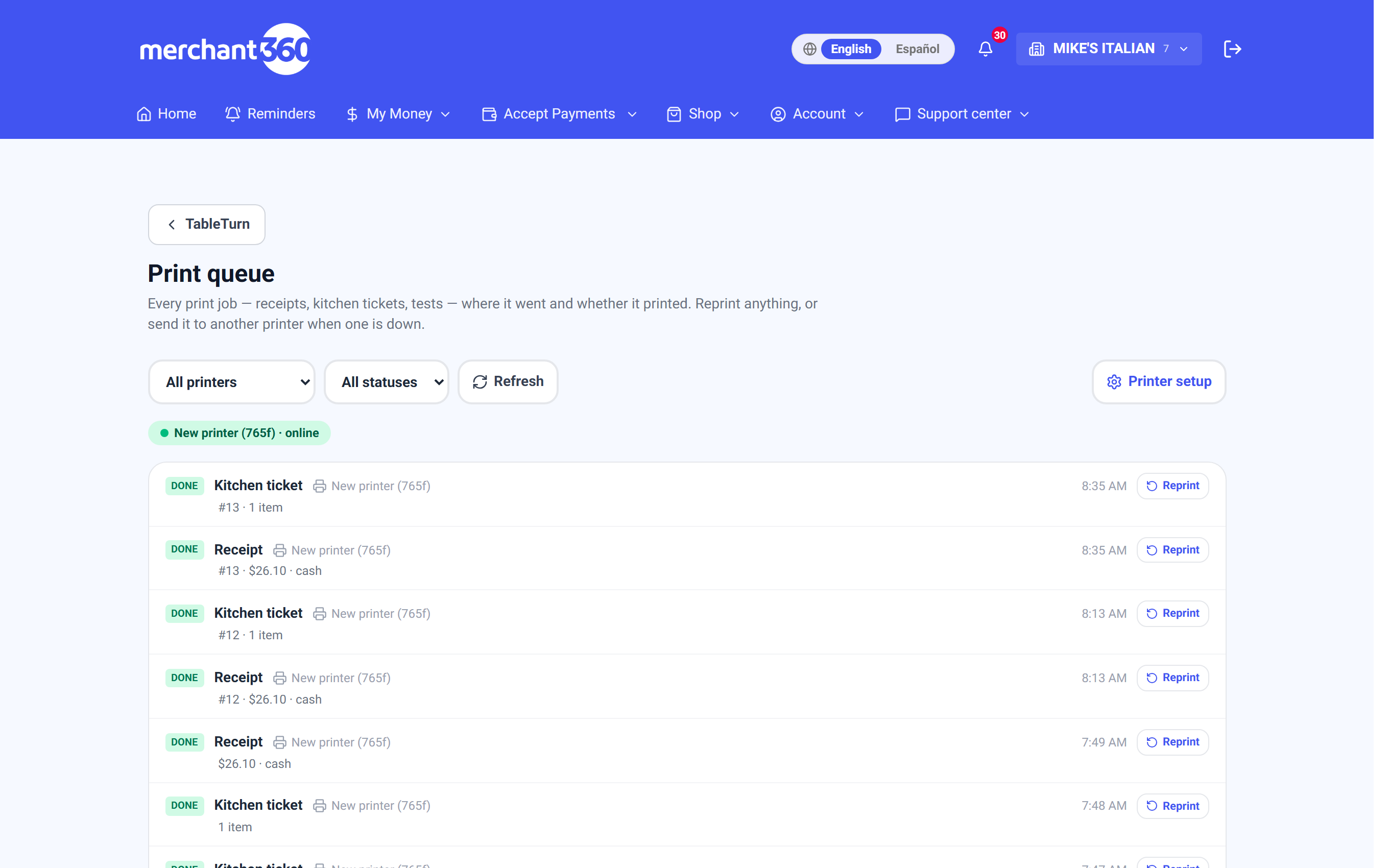
Open the register Menu → Print queue (or the Print queue card on the TableTurn hub). It's the printing page you'll actually revisit: every job ever queued – receipts, kitchen tickets, tests, samples – with its status, which printer it went to, when, and a context line like *#42 · $54.38 · VISA ····4242 · Maria* so you know exactly what you're looking at.
Filter by printer or status, and page back as far as you need. A printer health strip across the top shows every active printer with a live online/offline dot – the at-a-glance answer to "is the kitchen printer down?".
Reprint re-queues a job on its own printer. To… lists your *other* connected printers and sends the job there instead – the play for when a printer is down mid-service. Only printers that speak the same format are offered, so a job can never land somewhere it would print garbage.
Printer setup (roles, adding printers, tests) moved under Settings → Printer setup – you visit it once. The queue is the daily page.
Ticket routing – what prints where
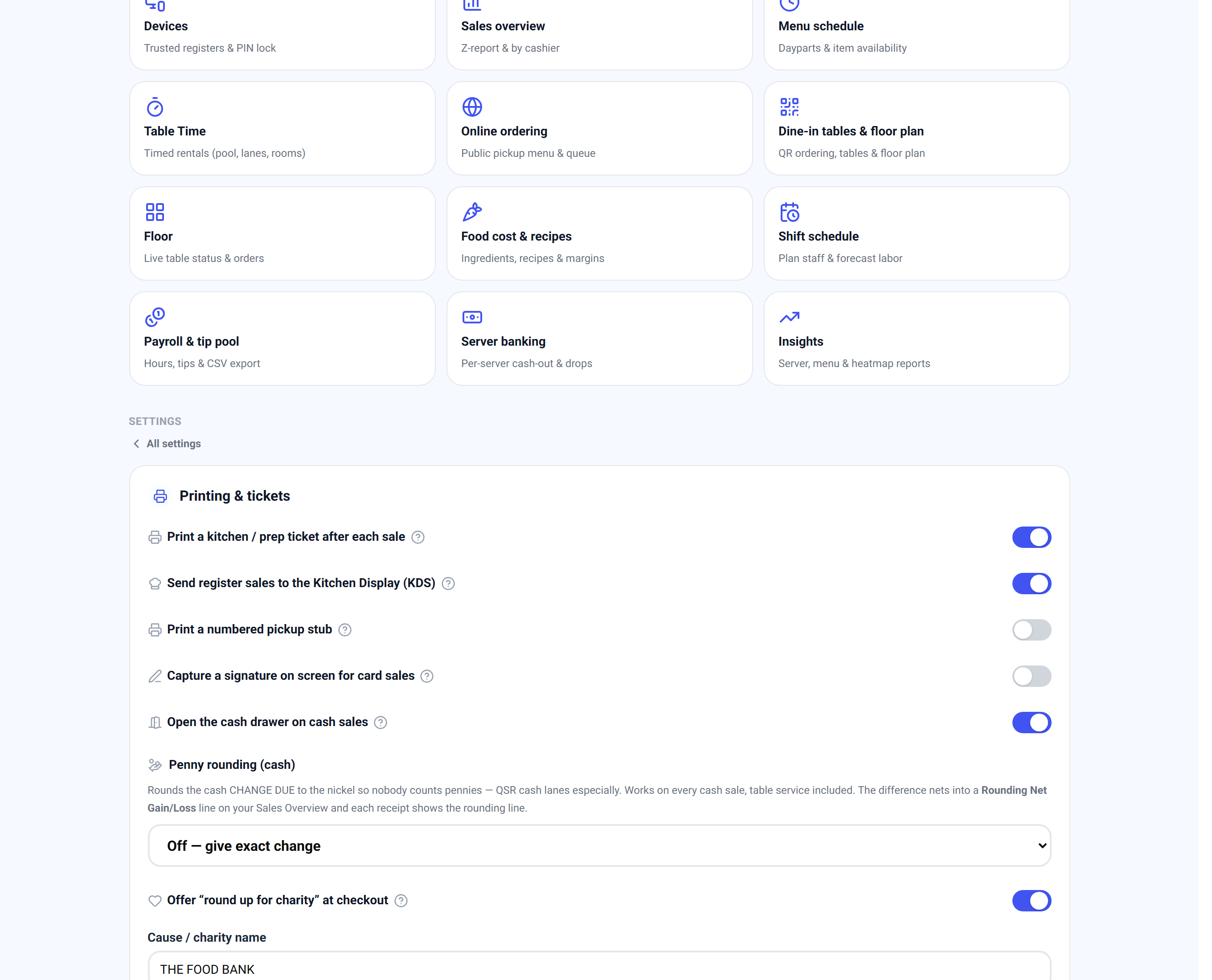
The Ticket routing card sits right on the Printers page, with the printers it governs. Three switches: kitchen / prep tickets, the Kitchen Display mirror, and numbered pickup stubs.
Connecting a Kitchen (or Both) printer turns kitchen tickets on automatically – the card shows an Auto on chip when the printer itself is doing the enabling. No toggle hunt.
The KDS switch works alongside printing, not instead of it: turn both on and every send prints a ticket *and* lands on the Kitchen Display. Kitchens that run both, can.
Adding a printer
A kit printer needs nothing. Printers ordered through the setup checklist arrive preconfigured for your account and test-printed before boxing – plug in power and ethernet, and it appears on your Printers page and starts printing.
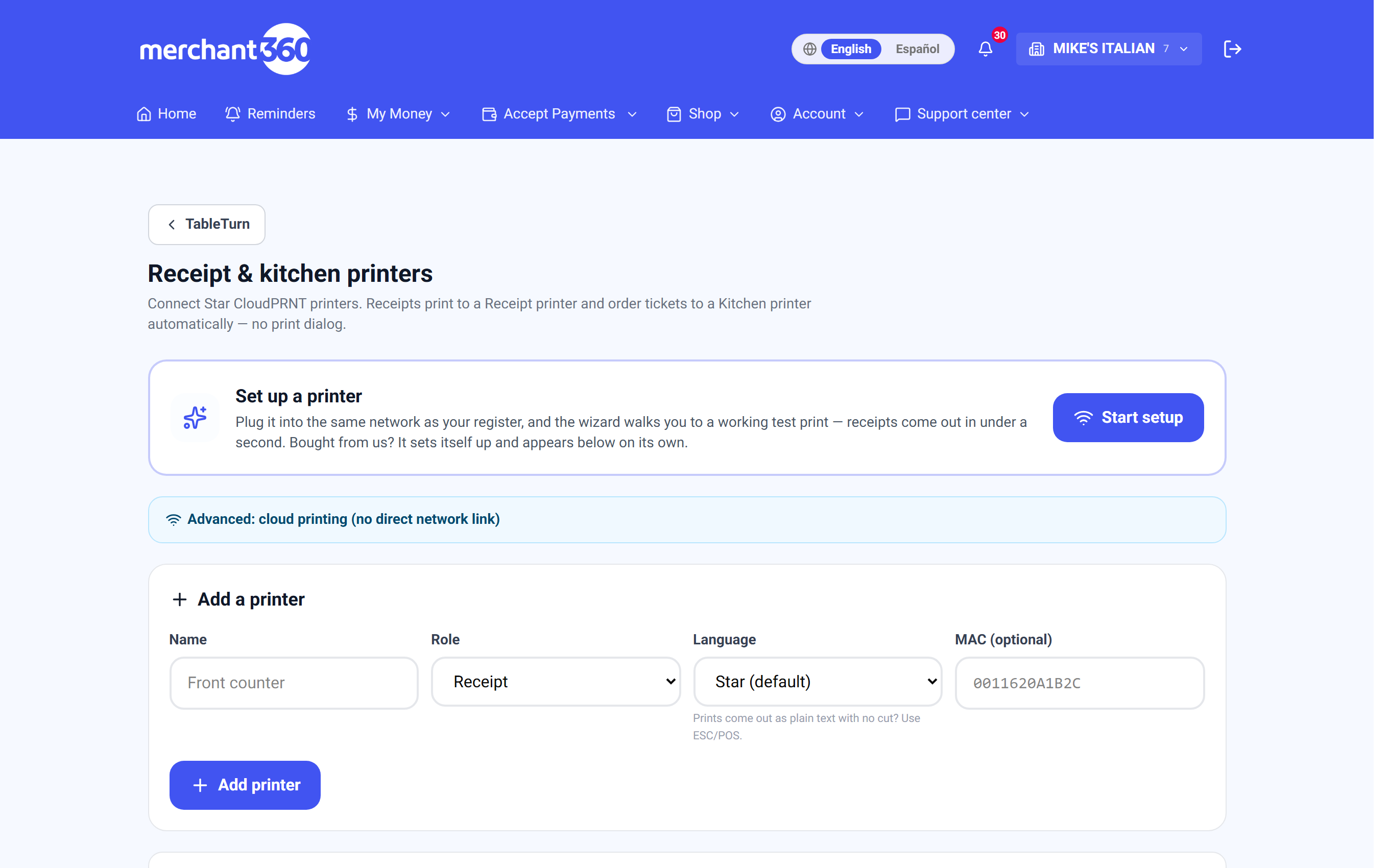
Bringing your own Star printer takes a few minutes on Settings → Printer setup. Add the printer with a name and a role (Receipts, Kitchen, or Both), then open the printer's own settings page and paste in your CloudPRNT URL – it's shown at the top of the Printers page with a copy button, and it's unique to your restaurant. Set the polling interval to 1 second while you're there.
Once the printer starts polling, TableTurn recognizes it automatically – its MAC address attaches to the printer you registered and the status dot goes green Online. You don't need to find or type a MAC yourself.
Finish with Test – a test ticket means the whole path works: register → cloud → printer → paper. If the test prints, receipts and kitchen tickets will too.
The setup wizard on the Printers page walks the same steps interactively, including finding a printer that's already polling and a guided test print.
One printer can do everything: give it the Both role and it prints receipts and kitchen tickets, cut apart automatically. Add dedicated station printers later – nothing about the first printer has to change.
Printers: roles, copies and routing
Each printer has a role – Receipts, Kitchen, or Both – and that's what decides which document it gets.
Kitchen and Both printers add two more settings. Kitchen ticket copies prints 1, 2 or 3 tickets per order, for a line that wants one on the rail and one at the pass. Categories routes by menu category, so drinks go to the bar and food to the kitchen – leaving all categories unselected means that printer prints everything.
Active pauses a printer without deleting it, and Test sends a test page so you can confirm a printer before service rather than during it.
When nothing prints
Start at Recent print jobs on the Printers page. It tells you whether the ticket ever left us, which splits the problem in half.
PENDING means we queued it and the printer never collected it – it's off, not on the network, or not polling. CLAIMED means the printer fetched it, so the job reached the device and anything wrong after that is paper, hardware, or the printer itself. Error means it was given up on.
Nothing queued at all? The category probably isn't routed to any printer. Items with no routing print nowhere.
Plain text with no cut, no logo, no bold? Switch that printer's language to ESC/POS on the Printers page. Formatting, logos and paper cuts all come back.
A red ERROR that says the job came from an outdated register? An amber Update ready pill appears in the register's top bar when a newer version has shipped – tap it, the register reloads, and re-send the order. The queue turns silent failures into visible red rows on purpose.
A sale's receipt and its kitchen tickets go out as one job per printer, so they arrive together rather than minutes apart. If one printed and another didn't, it's that printer, not the sale.